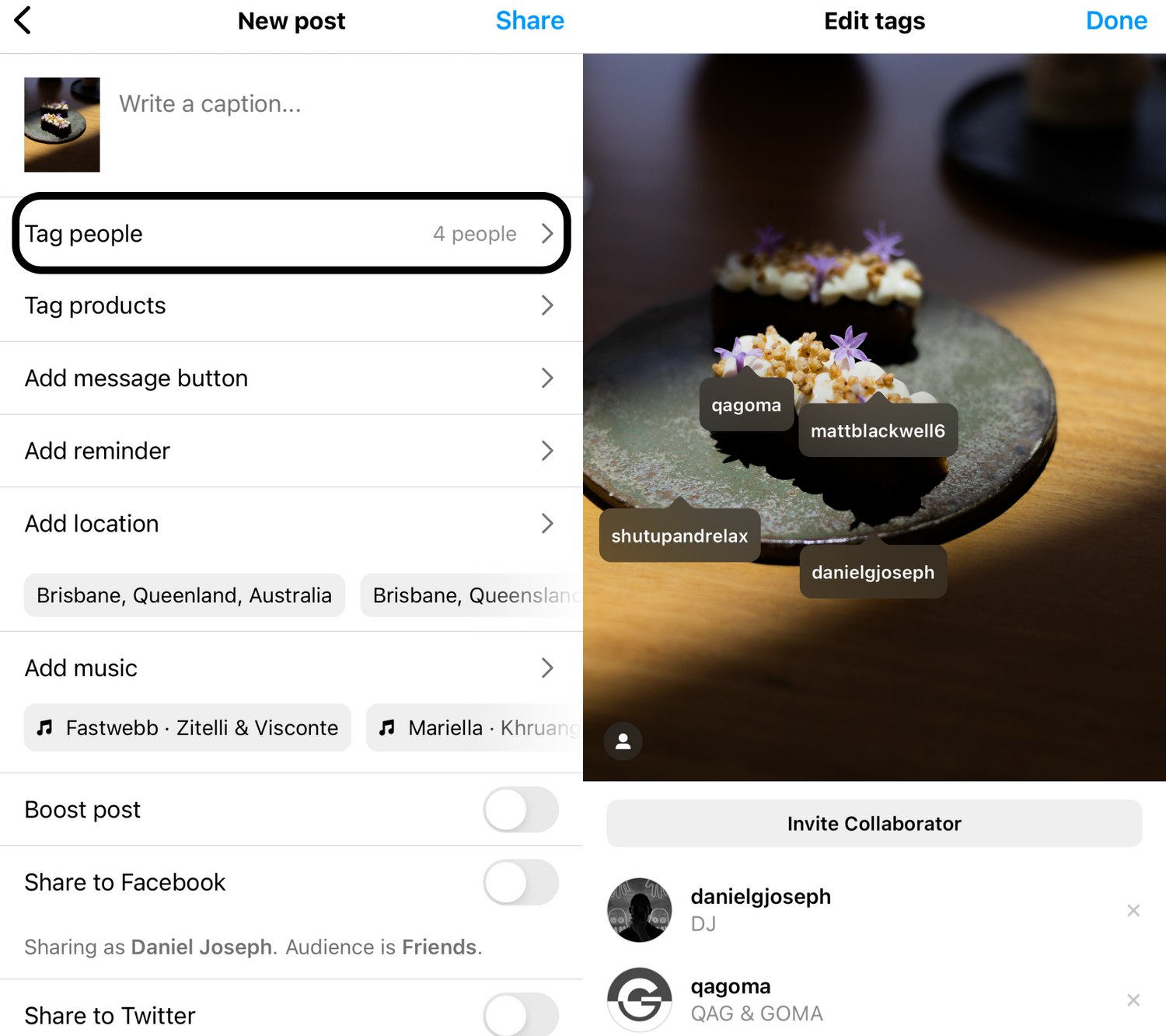
Before we get to the good stuff, let's cover some Instagram basics. To ensure that your photos are crisp and clear as possible, you want to ensure that your next post uses these settings.
Enable high-quality uploads
- Launch Instagram
- Tap your profile photo at the bottom right corner of the app
- Tap the icon at the top right corner of your profile page
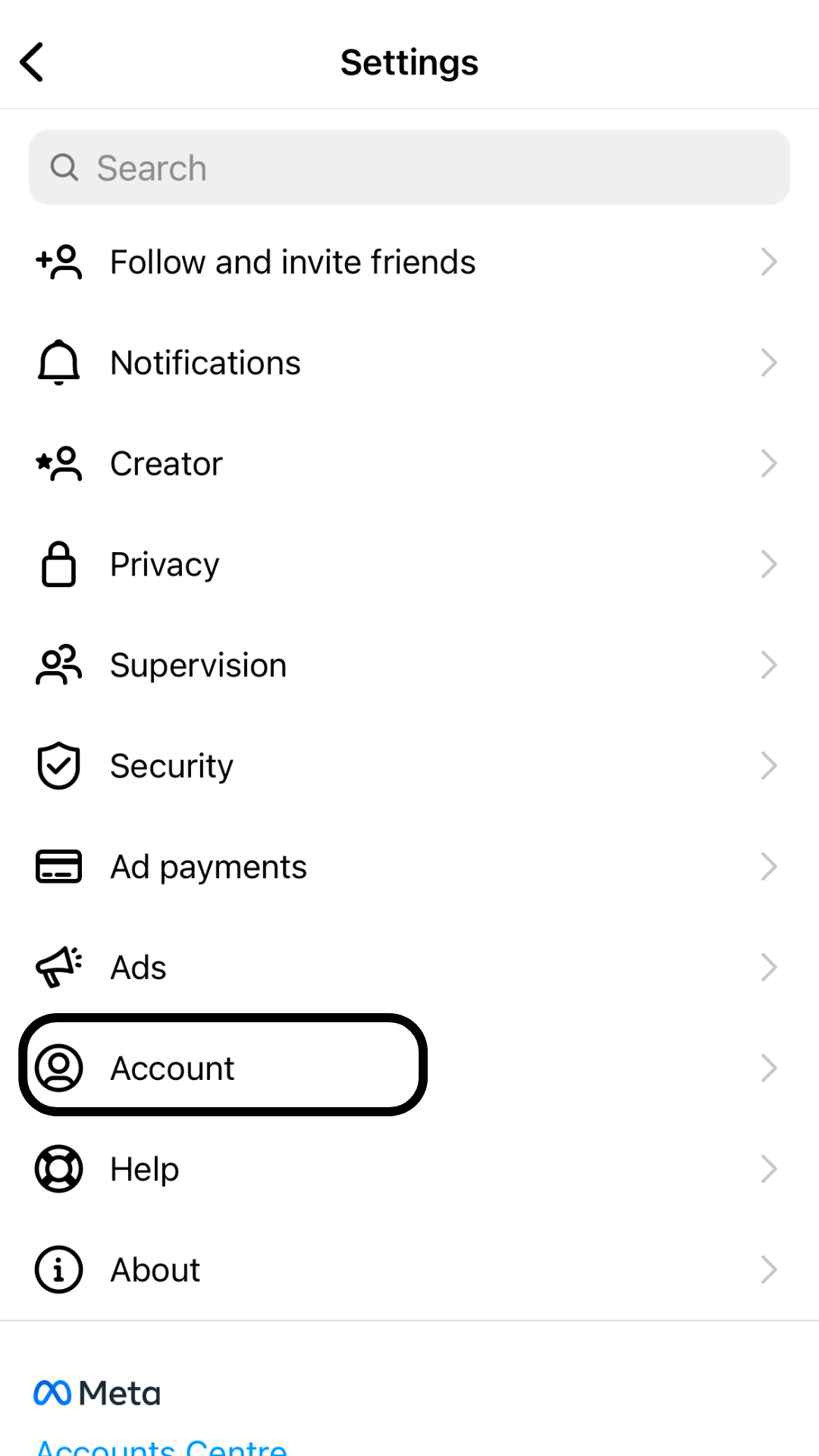
- Tap on Settings
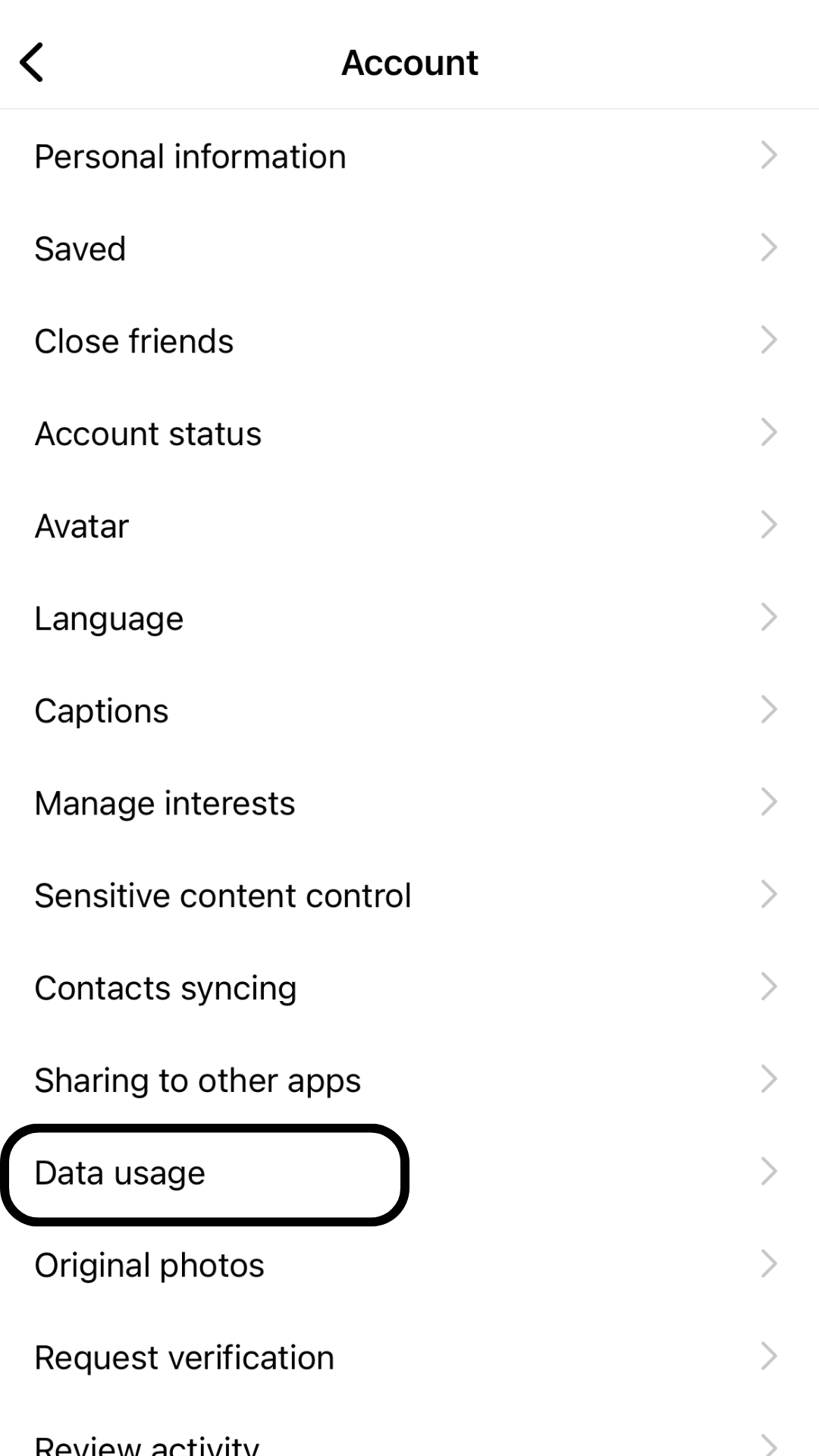
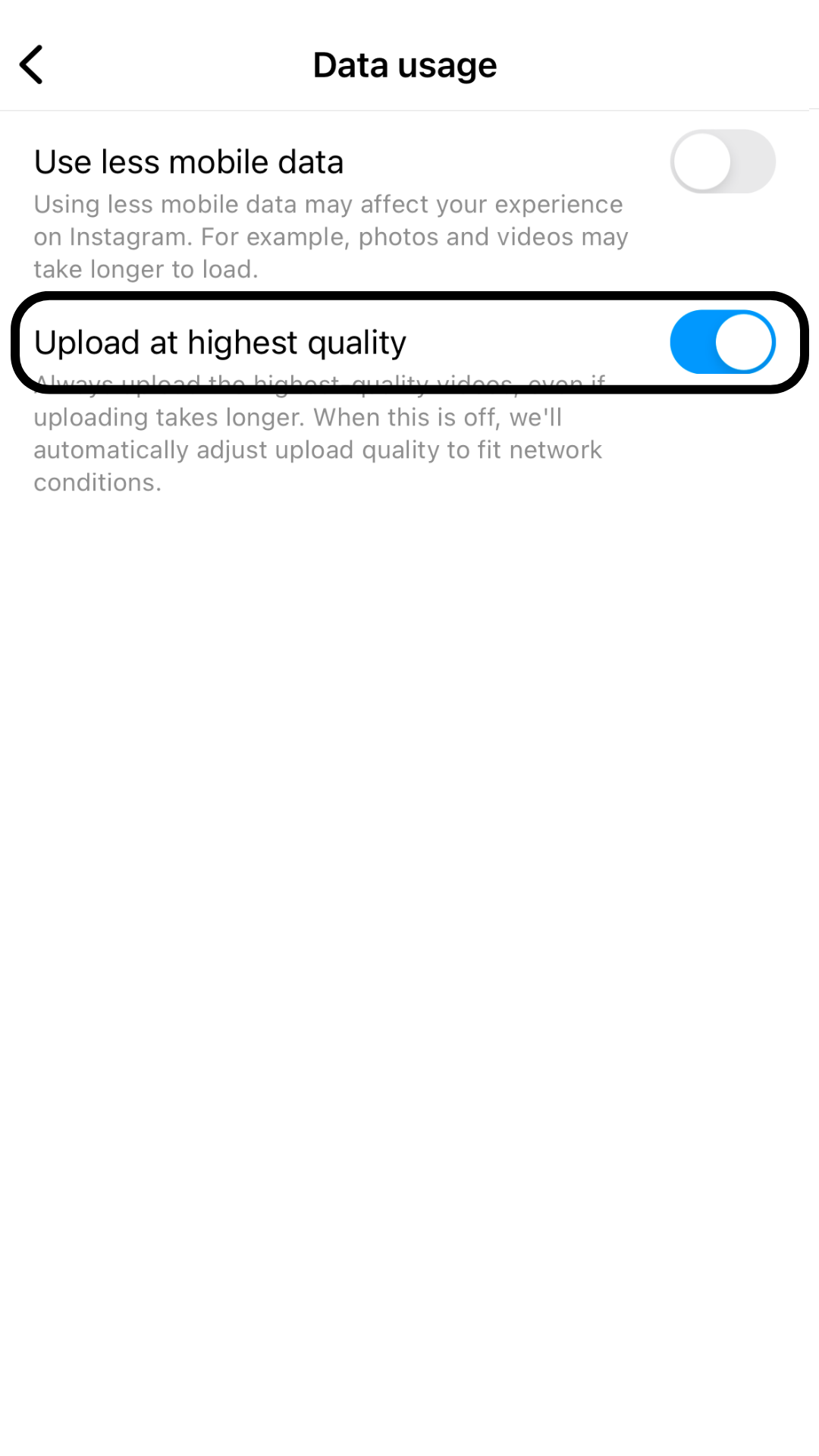
- Go to Account > Data Usage
- Tap on the “High-quality uploads” toggle to turn it on
Cropping do's & Dont's
Instagram. When you share a photo that has a width between 320 and 1080 pixels, we keep that photo at its original resolution as long as the photo's aspect ratio is between 1.91:1 and 4:5 (a height between 566 and 1350 pixels with a width of 1080 pixels). If the aspect ratio of your photo isn't supported, it will be cropped to fit a supported ratio. If you share a photo at a lower resolution, we enlarge it to a width of 320 pixels. If you share a photo at a higher resolution, we size it down to a width of 1080 pixels.
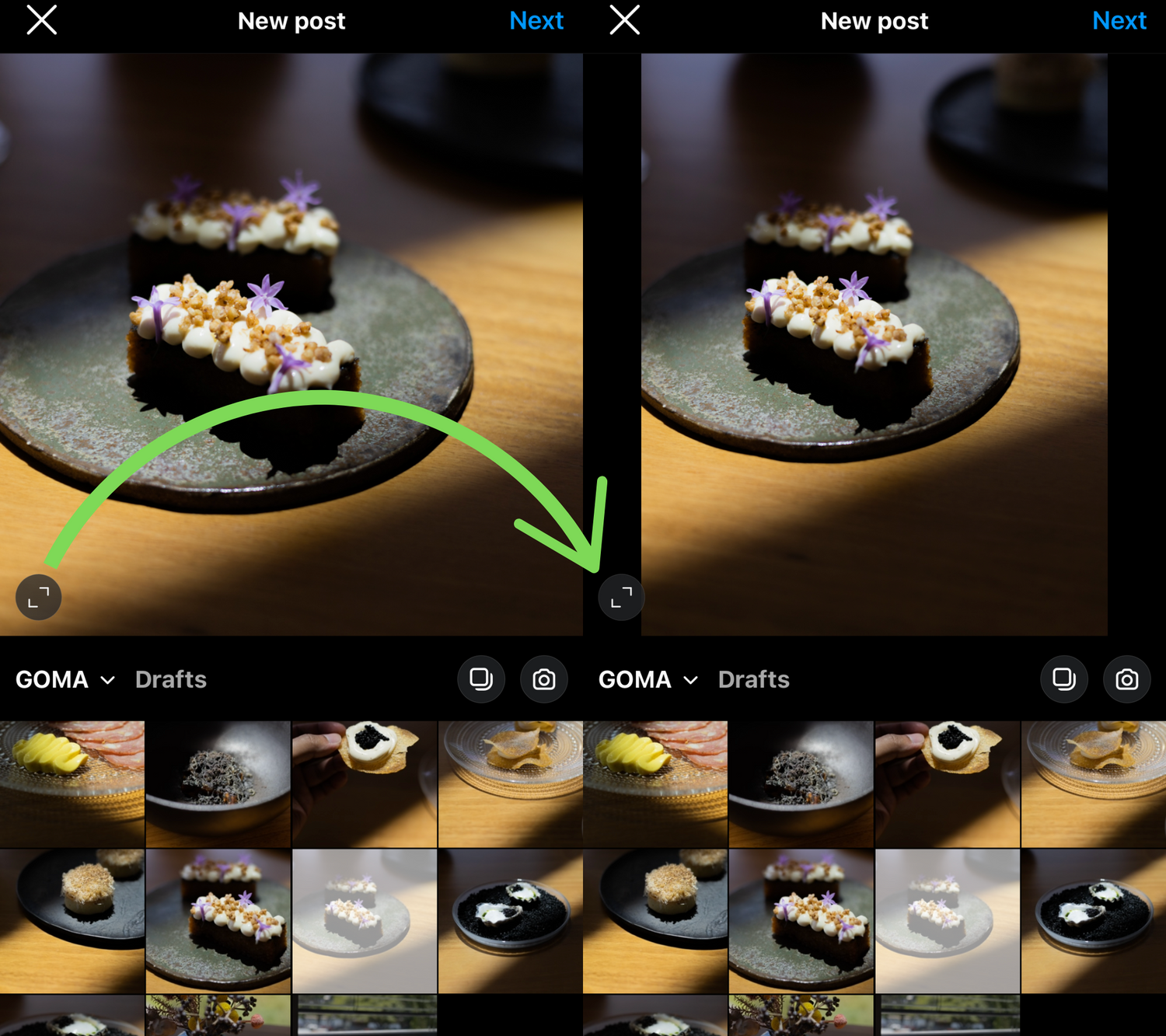
Put simply, your fresh batch of images have been optimised to perfectly suit the Vertical (Portrait) format in Instagram. When posting to the grid, expand the selection to ensure that both image quality and aesthetic are preserved.
Tags & Hashtags
Finally, using hashtags and tagging can increase the chances of your post appearing in search results and being shared by other users. So, if you want to make the most out of your new assets, be sure to use hashtags and tagging effectively in your posts.